GitLab in the Homelab: Self-Hosted Git, CI/CD, and Container Registry
How a self-hosted GitLab instance with CI/CD pipelines and an internal container registry transformed my homelab workflow.
If you run a homelab long enough, you inevitably end up with a pile of custom Docker images, scripts, and configs scattered across machines. At some point you need a proper place to manage all of it — version control, CI/CD, a container registry. For me, that's a self-hosted GitLab instance.
Why Self-Hosted GitLab?
I already keep my public projects on GitHub, but a lot of what runs in my homelab doesn't belong there. Internal configs, project-specific Dockerfiles, quick utility scripts, private experiments — this stuff needs a home that's under my control, on my network, and doesn't require me to think about visibility settings or rate limits.
GitLab checks all the boxes. It's a single deployment that gives me git hosting, a container registry, CI/CD pipelines, and even a snippet manager for those one-off scripts that don't deserve their own repo. It's overkill in the best possible way.
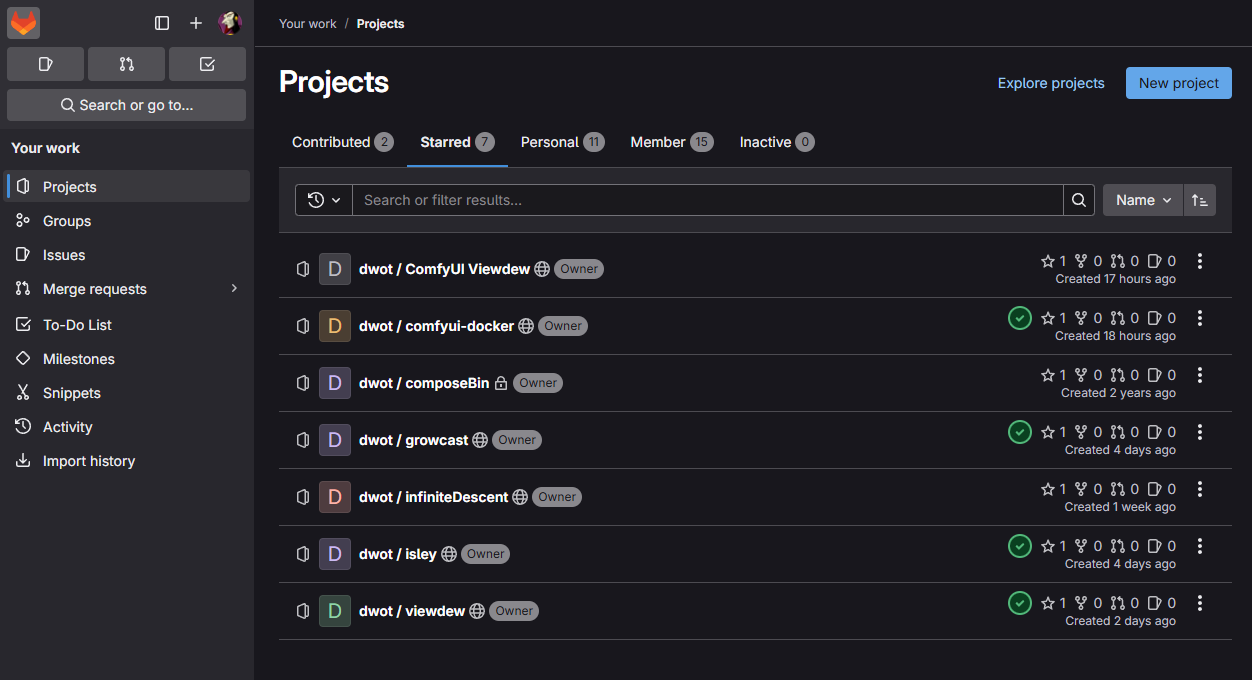
Running It
The whole thing is GitLab CE in a single container, sitting behind my reverse proxy with the built-in container registry enabled. There's nothing exotic about the compose file — the only parts worth calling out are the external URL and the registry, since those are what make the rest of this post work:
services:
  gitlab:
    image: gitlab/gitlab-ce:latest
    restart: unless-stopped
    hostname: gitlab.lan
    environment:
      GITLAB_OMNIBUS_CONFIG: |
        external_url 'https://gitlab.lan'
        registry_external_url 'https://gitlab.lan:5050'
    ports:
      - "80:80"
      - "443:443"
      - "5050:5050"
    volumes:
      - ./config:/etc/gitlab
      - ./logs:/var/log/gitlab
      - ./data:/var/opt/gitlab
Give it a few minutes on first boot — GitLab does a lot of initialization — and you've got git over HTTPS and SSH, a web UI, an integrated CI runner you register afterward, and a registry on port 5050. From there it's just projects.
One Repo, Two Images: CI/CD in Action
The best way to show why this setup earns its keep is a real project. My growcast streaming container lives here, and it's a good example because it ships in two flavors — a plain CPU build and a GPU-accelerated build — each with its own Dockerfile.
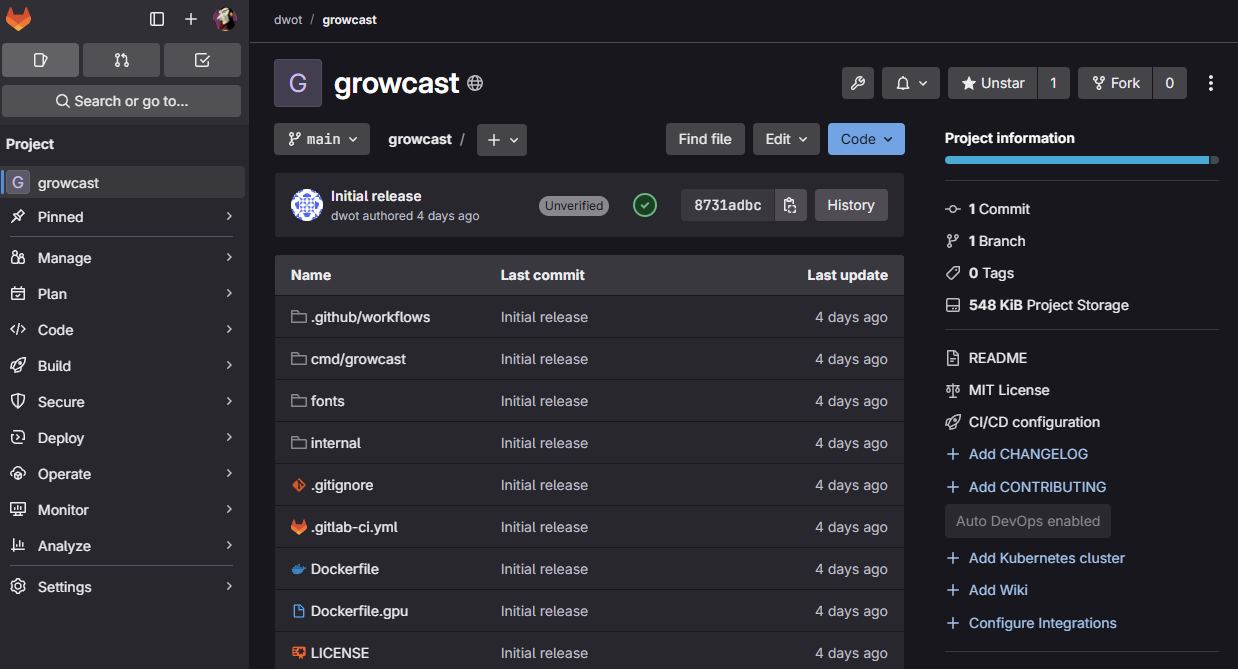
Dockerfile, a Dockerfile.gpu, and a .gitlab-ci.yml tying them together.Because GitLab hands every pipeline a set of $CI_REGISTRY* variables and an automatic login, the .gitlab-ci.yml stays short. One build stage, two jobs — one per Dockerfile — each tagging and pushing into this project's own slot in the registry:
stages:
  - build

.build: &build
  stage: build
  image: docker:latest
  services:
    - docker:dind
  before_script:
    - docker login -u "$CI_REGISTRY_USER" -p "$CI_REGISTRY_PASSWORD" "$CI_REGISTRY"

build-cpu:
  <<: *build
  script:
    - docker build -f Dockerfile -t "$CI_REGISTRY_IMAGE:latest" .
    - docker push "$CI_REGISTRY_IMAGE:latest"

build-gpu:
  <<: *build
  script:
    - docker build -f Dockerfile.gpu -t "$CI_REGISTRY_IMAGE:gpu" .
    - docker push "$CI_REGISTRY_IMAGE:gpu"
Push to main and the pipeline fires on its own. The CPU image is small and finishes in well under a minute; the GPU image, with the CUDA-enabled FFmpeg base, takes a few minutes — but they run as part of the same pipeline and both land in the registry when they're done.
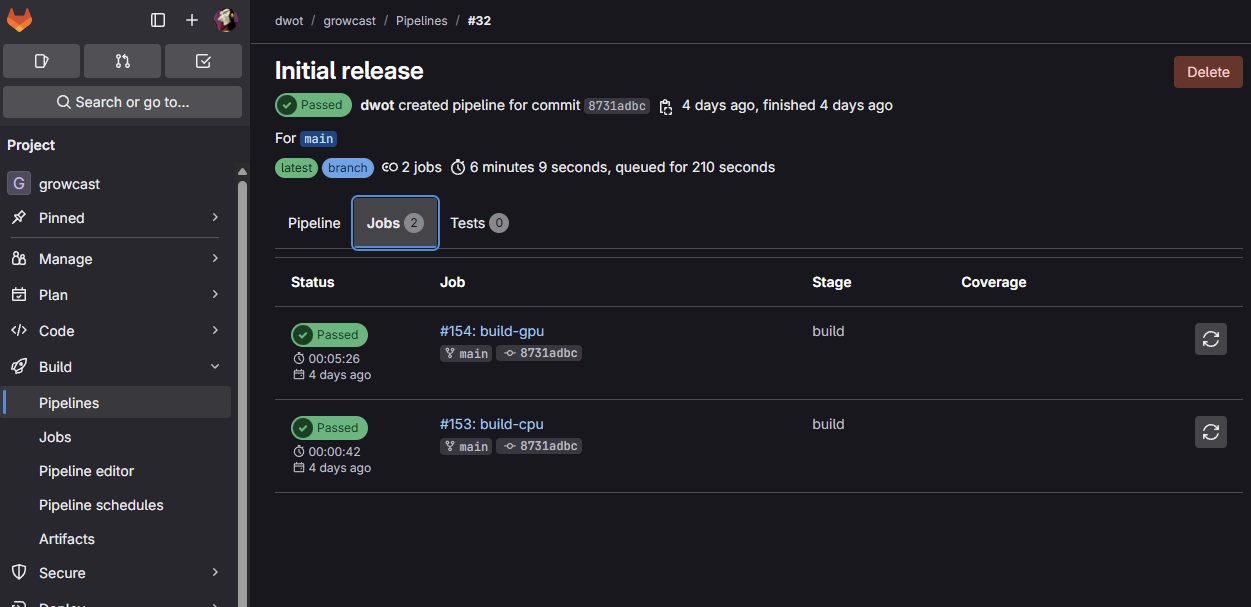
build-cpu in 42 seconds, build-gpu in five and a half minutes, both green.The Container Registry
This is the part that quietly changed how I work. Every project gets its own registry namespace for free, and once an image is built I can pull it from any host on the network without it ever touching a public registry:
docker login gitlab.lan:5050
docker pull gitlab.lan:5050/dwot/growcast:latest
# or the GPU build on a box with an NVIDIA card
docker pull gitlab.lan:5050/dwot/growcast:gpu
No Docker Hub pull limits, no pushing private code to a third party, and the image lives one hop away on the LAN so pulls are nearly instant. Commit, let CI build, pull on the target host — the whole loop stays inside the homelab.
Snippets and the Little Stuff
The feature I didn't expect to use as much as I do is Snippets. Every homelab accumulates one-liners and throwaway scripts that don't deserve a repo but that you'll absolutely want again in six months — a backup cron, a curl against some device's API, the exact ffmpeg incantation that finally worked. They go in a snippet, they're searchable, and they're not cluttering up a real project.
Was It Worth It?
For a single user, yes — easily. The honest tradeoff is that GitLab CE is heavy; it wants a few gigs of RAM and it is not a "set it and forget it" container the way a lot of homelab services are. But what I get back is the entire develop-build-deploy loop running on hardware I own: private git, pipelines that build my images, and a registry every other host can pull from. For the way I tinker, that's exactly the right tool.