Growcast: Replacing OBS with a Single Container for 24/7 Grow Streaming
How I replaced a Guacamole + OBS Studio stack with a single Go container that streams my grow tent 24/7 using FFmpeg, GPU acceleration, and live sensor overlays.
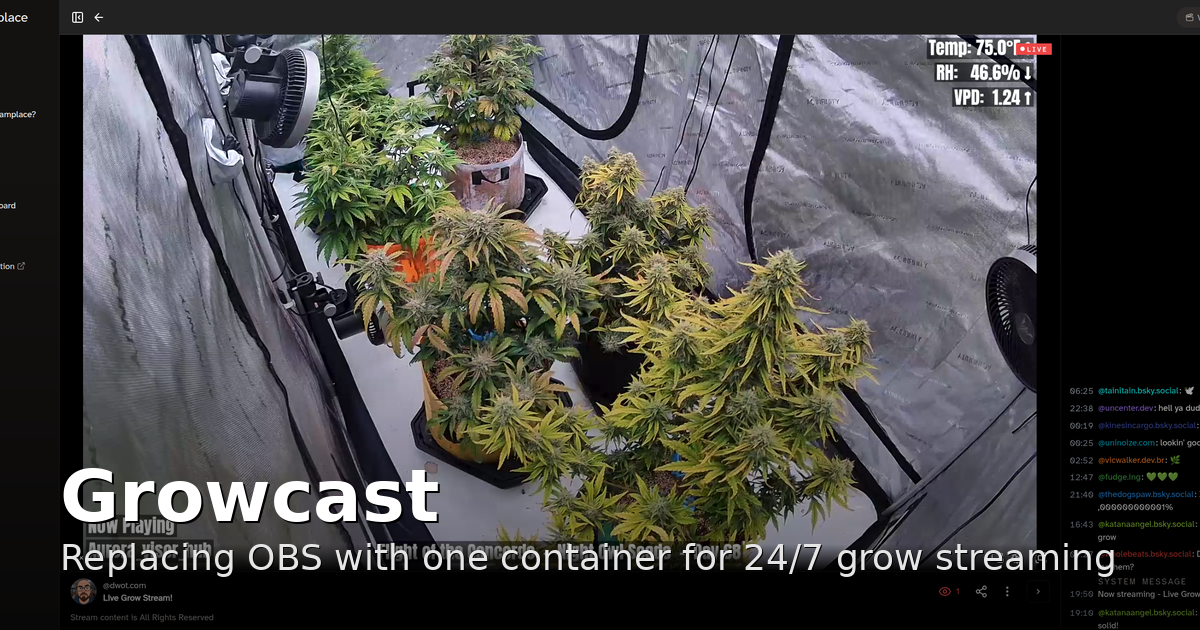
For about a year, my grow tent had its own little broadcast studio bolted onto it. A couple of RTSP cameras fed into a Linux box running OBS Studio, and the only way I had to drive that box was Guacamole — RDP'ing into the desktop through the browser just to composite a few camera feeds, slap some overlays on top, and push the result to a 24/7 livestream. It worked, technically. It was also janky, manual, and recovered terribly.
OBS is a fantastic tool for a human sitting at a desk clicking scenes. It is a much worse tool for a stream that is supposed to run unattended for weeks at a time. So I replaced the whole thing with a single Go container called Growcast. It just runs now — and when the stream does go down, it recovers on its own in seconds instead of waiting for me to notice. You can watch the result running at grow.dwot.io. This is the story of why, and how it actually works under the hood.
Why OBS had to go
The problems were all the same problem wearing different hats: OBS is built around a GUI and a human.
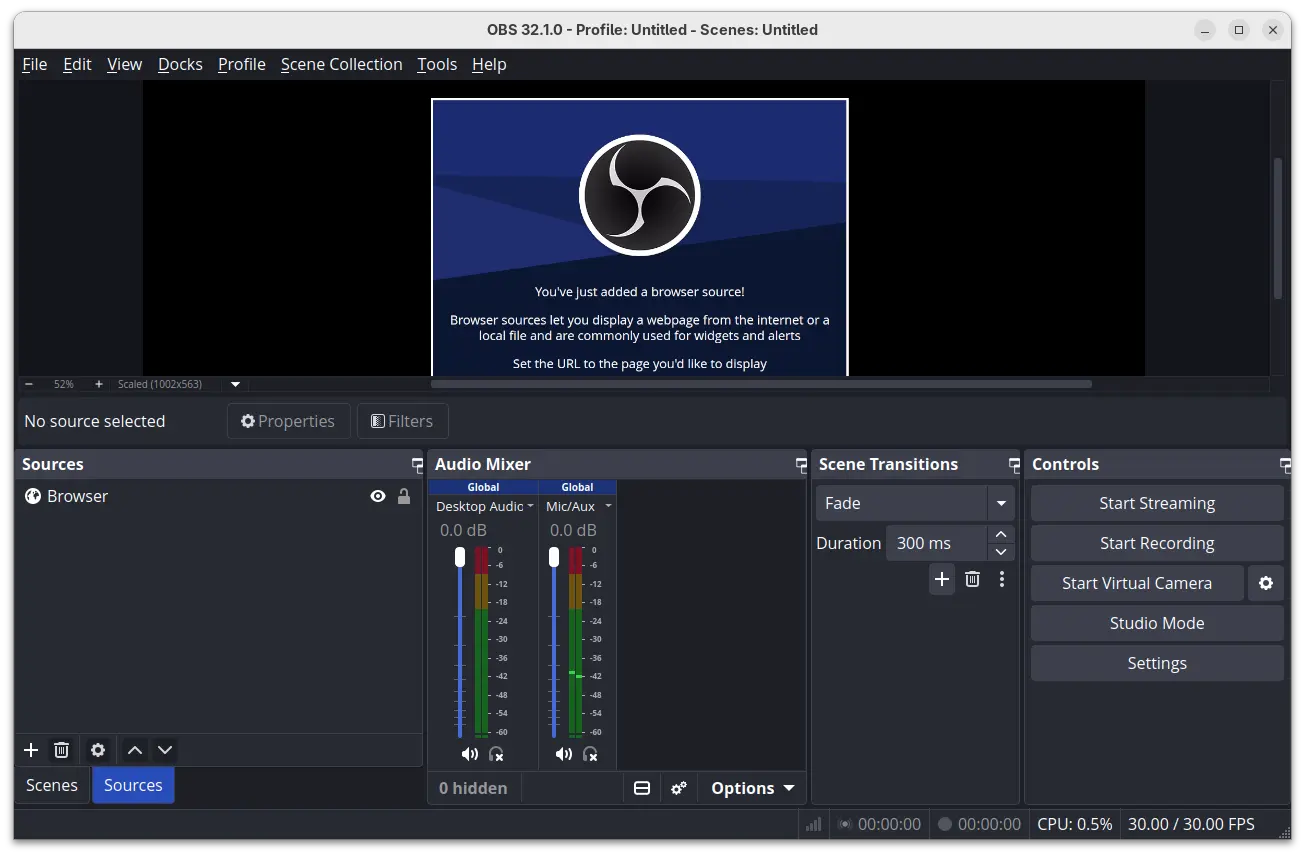
- It needs a desktop. Headless OBS is possible but awkward, so I was burning a whole graphical session — and a Guacamole tunnel to reach it — on something that should be a background daemon.
- Recovery was manual. When a camera dropped or the stream wedged, OBS would happily sit there broadcasting a frozen frame until I noticed and clicked something. For an unattended stream, "until I notice" can be hours.
- Config lived in a GUI. Scenes, sources, and filters were trapped in OBS's interface instead of a file I could version, diff, and redeploy.
What I actually wanted was boring and declarative: a config file that says here are my cameras, here are my scenes, here is where to stream, and a process that turns that into a rock-solid 24/7 broadcast and restarts itself when something goes wrong. No desktop, no clicking.
The core idea: one FFmpeg process, forever
Underneath all the scene-switching glamour, OBS is mostly orchestrating FFmpeg-style media plumbing. So Growcast cuts out the middleman: the entire pipeline is a single, persistent FFmpeg process that Growcast builds, launches, and supervises.
That one process pulls in every camera as an RTSP input, composites them through a filter graph, encodes the output exactly once, and fans it out to every streaming destination. In Go, the orchestrator describes its own job well:
// Orchestrator manages scene composition and switching via a single persistent
// FFmpeg process. Scene switching is performed by sending ZMQ commands to FFmpeg's
// streamselect filter — no process restart, no RTMP reconnect to the output.
That comment contains the whole trick, and it's worth slowing down on, because it's the thing that makes a single FFmpeg process viable as an OBS replacement.
Switching scenes without dropping the stream
The naive way to change what's on screen is to tear down FFmpeg and start a new one with different inputs. The problem is that every restart means a fresh RTMP handshake with Twitch — which means a visible drop, a reconnect, and a few seconds of dead air. Do that on every scene rotation and your "24/7 stream" is really a slideshow of reconnects.
Growcast sidesteps this entirely. At startup it builds all scenes into one filter graph and wires them into FFmpeg's streamselect filter. Only one scene is routed to the encoder at a time, but they all exist simultaneously inside the running process. Switching scenes is then just a message telling streamselect to point at a different input — sent over a ZMQ socket that FFmpeg is listening on:
// StartScene switches to the specified scene by sending a ZMQ command to FFmpeg's
// streamselect filter. No process restart occurs — the RTMP connection to the
// output remains uninterrupted.
zmqCmd := fmt.Sprintf("streamselect@sel map %d", idx)
if err := sendZMQCommand(ctx, o.sceneSwitch.ZMQAddress, zmqCmd); err != nil {
    return fmt.Errorf("ZMQ scene switch failed: %w", err)
}
The encoder never stops. The RTMP connection never blinks. From Twitch's perspective, it's one unbroken stream that just happens to change what it's showing. Scenes can rotate automatically on a timer, or you can trigger a switch on demand through the REST API — same code path either way.
💡 The takeaway: the expensive, fragile part of streaming is the connection to the destination. Keep that alive at all costs and let everything upstream of the encoder be where the changes happen.
What the filter graph is actually doing
Building "all scenes at once" is more involved than it sounds, and the orchestrator handles a few nice details automatically:
- Each unique camera becomes exactly one RTSP input, no matter how many scenes use it.
- A camera that appears in multiple scenes gets passed through a
splitfilter so its frames can feed several layout subgraphs at once. - Each scene gets its own layout subgraph —
single(full frame),pip(picture-in-picture), or a 2×2grid— all normalized to a 1920×1080 canvas. - Every scene's output is collected into
streamselect, which picks the live one.
Define a few cameras and the scenes that combine them, and Growcast assembles the entire -filter_complex string for you. The config you write stays declarative and readable:
scenes:
  single_front:
    name: "Single - Front"
    cameras: [cam1]
    layout: "single"

  pip_view:
    name: "PiP View"
    cameras: [cam1, cam2]   # first camera is primary
    layout: "pip"

  quad_view:
    name: "Quad View"
    cameras: [cam1, cam2, cam3, cam4]
    layout: "grid"
Encode once, stream everywhere
Because there's a single encode pass, Growcast can fan the result out to multiple destinations cheaply using FFmpeg's tee muxer. Twitch, an Owncast instance, Streamplace — encode once, send everywhere:
outputs:
  twitch:
    type: "rtmps"
    url: "rtmps://live-iad.twitch.tv:443/app"
    key: "your-stream-key"
    enabled: true
  owncast:
    type: "rtmp"
    url: "rtmp://192.168.1.50:1935/live"
    key: "your-owncast-key"
    enabled: true
The tradeoff is the flip side of the same coin: one encode means one set of encoder settings shared across all destinations, so you tune to the strictest requirement among them. For a grow-tent stream that's a perfectly fine deal.
Live overlays without touching FFmpeg
Half the point of streaming a grow tent is the data: temperature, humidity, VPD, which plant you're looking at, how many days into flower it is. Those numbers change constantly, but I did not want "the numbers changed" to mean "restart the encoder."
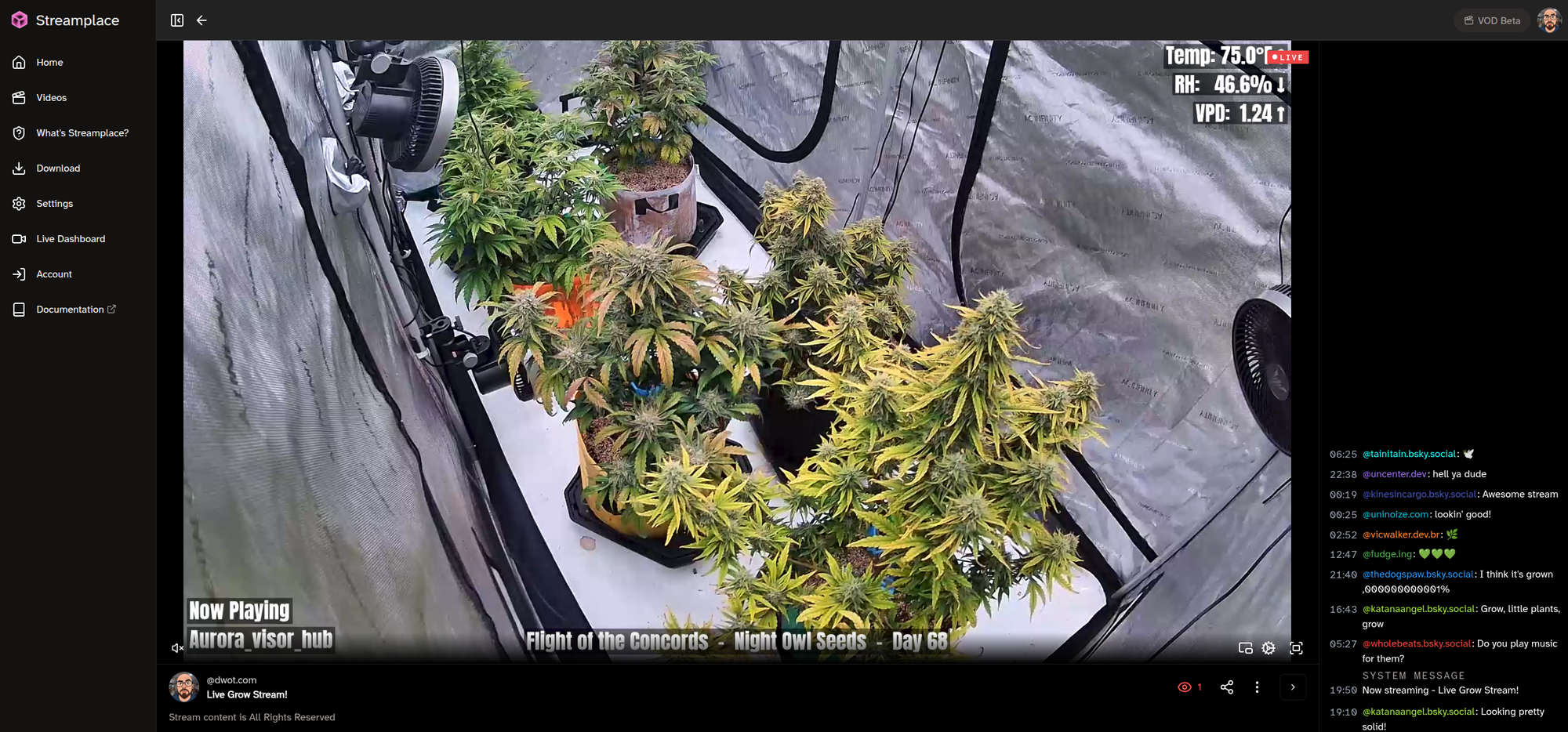
The solution is delightfully low-tech. Every overlay is an FFmpeg drawtext filter pointed at a small text file, with reload=1 set so FFmpeg re-reads the file on every frame:
// All overlays are driven by writing small text files that FFmpeg re-reads on
// each rendered frame via drawtext's textfile=<path>:reload=1 option. This
// lets overlay content update continuously without touching the running FFmpeg
// process.
A background goroutine polls my grow-journal app, Isley, for live sensor readings and plant data, then writes those values into the overlay files. FFmpeg picks up the new text on the very next frame. Sensor stats, a rotating plant ticker, and now-playing info from an Azuracast radio stream all work this way — completely decoupled from the encoder.
One scar worth sharing: I learned the hard way that multi-line drawtext rendering is inconsistent across FFmpeg builds. Alpine's packaged FFmpeg, for instance, renders the newline byte in a text file as a visible placeholder glyph instead of an actual line break. The fix was to give each logical line its own single-line file and its own drawtext instance at a fixed y-offset. Less elegant, renders correctly everywhere.
Surviving 24/7 unattended
This is the part OBS never did for me, and the part I'm proudest of. A 24/7 stream's worst enemy isn't a clean crash — it's the silent failure where everything looks alive but no real video is moving. Growcast supervises its FFmpeg process and hunts for exactly those cases.
It watches FFmpeg's stderr for two distinct kinds of stall:
- Silence. FFmpeg prints progress stats roughly twice a second while encoding. If that output goes quiet for 20 seconds, the filter graph has almost certainly blocked on a stalled RTMP write. Force-kill and restart.
- Frozen frames. The nastier case: FFmpeg is still printing stats, but the
frame=counter has stopped advancing. That means a camera died and its input is wedged while everything else keeps chattering. The silence detector would never catch this, so Growcast tracks the frame count separately and kills the process if it freezes for 15 seconds.
if frozenCount > 0 && frozenFor > frozenFrameTimeout {
    fmt.Printf("FFmpeg frame count frozen at %d for %.0fs — camera input "+
        "stalled, force-killing...\n", frozenCount, frozenFor.Seconds())
    proc.ForceStop()
}
There's even a small papercut fix hiding in here: FFmpeg writes those progress lines using a bare carriage return (\r) rather than a newline, so a normal line scanner never sees them and the stall detector would be blind. Growcast uses a custom scanner that treats a lone \r as a line terminator, so every progress update reaches the watchdog. Tiny detail, completely load-bearing.
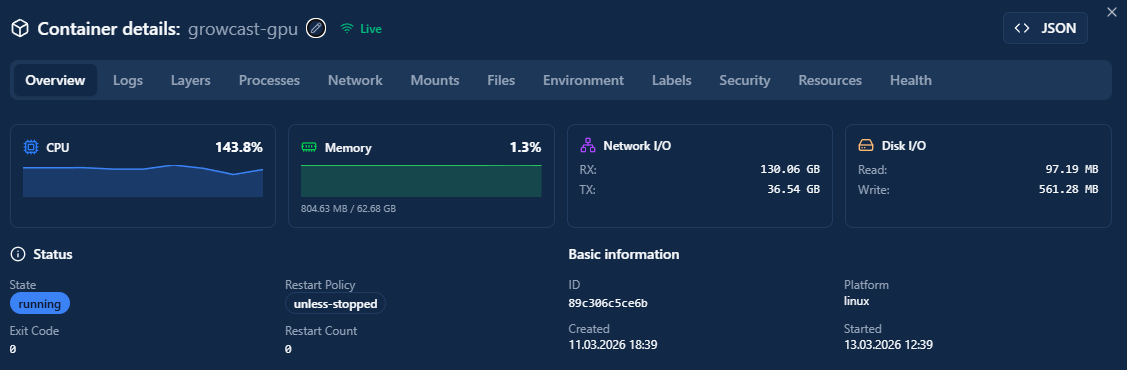
Optional GPU acceleration (and a SIGBUS war story)
On a box with an NVIDIA card, Growcast can offload H.264 encoding to NVENC and, optionally, decode the camera streams on the GPU with CUVID. It's a config flag and a GPU-flavored Docker image:
hardware_acceleration:
  enabled: true
  type: "nvenc"
  device: "0"
  decode: false   # set true to also decode camera streams on the GPU
Turning on both GPU encode and GPU decode surfaced a genuinely evil bug: random SIGBUS crashes. The cause was that FFmpeg, seeing two CUDA contexts, would sometimes run the filter graph on a different GPU device than the encoder used, and the cross-device frame upload corrupted memory. The fix is a single argument that pins the filter graph to the same device — but only when decode is active, because otherwise there's only one CUDA context to reference:
if o.hwAccel.Enabled && o.hwAccel.Decode {
    builder.RawArgs("-filter_hw_device", fmt.Sprintf("cuda:%s", o.hwAccel.Device))
}
That one's documented in a very long code comment now, as a gift to future me.
Deploying it
The whole thing ships as a Docker image with FFmpeg (built with ZMQ support) baked in, so there's nothing to install on the host beyond Docker itself. Drop in a config.yaml, bring it up, and it's streaming:
cp config.example.yaml config.yaml
# edit cameras, scenes, and outputs...
docker compose up -d

curl http://localhost:8080/health
# {"status":"ok"}
A small REST API exposes status and scene control — handy for wiring a switch into a dashboard or a button:
curl -X POST http://localhost:8080/scene/pip_view/start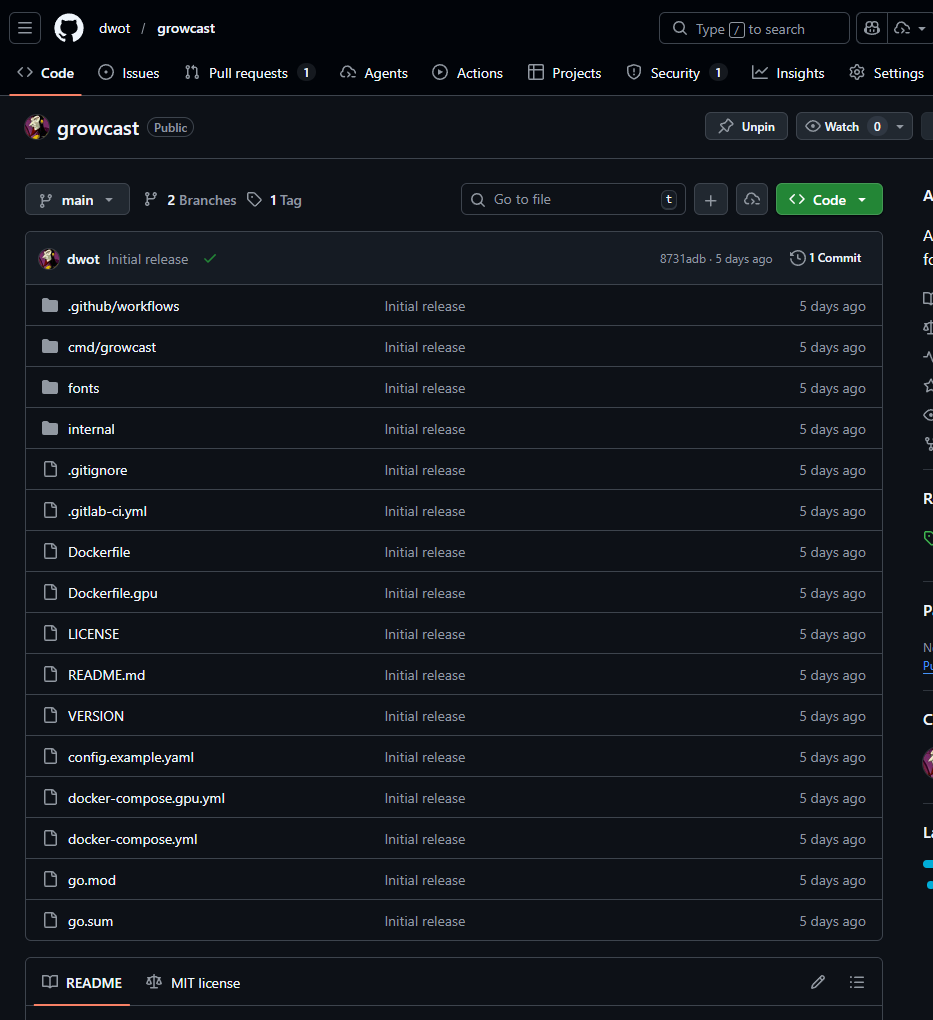
⚠️ One important caveat: Growcast has no TLS, no rate limiting, and the API is unauthenticated by default. It's built for LAN use behind a firewall or VPN — don't expose the container or its API port directly to the internet. (Fittingly, locking down self-hosted services is a whole separate post.)
Was it worth it?
Unambiguously, yes. I traded a desktop session, a Guacamole tunnel, and a GUI full of un-versioned clicks for a single container driven by one YAML file. Scene changes are seamless instead of reconnect-y. When a camera dies at 3am, the watchdog notices in seconds and recovers without me — no more frozen frames sitting on the stream until I happen to look. And the entire configuration lives in git where I can see it.
Growcast is admittedly a very personal tool — it was built to point at my grow tent and talk to my other apps — but the core pattern is general: if you need an unattended, multi-camera, multi-destination livestream, a single supervised FFmpeg process will take you remarkably far without OBS anywhere in sight. The code is on GitHub if you want to poke at it.